
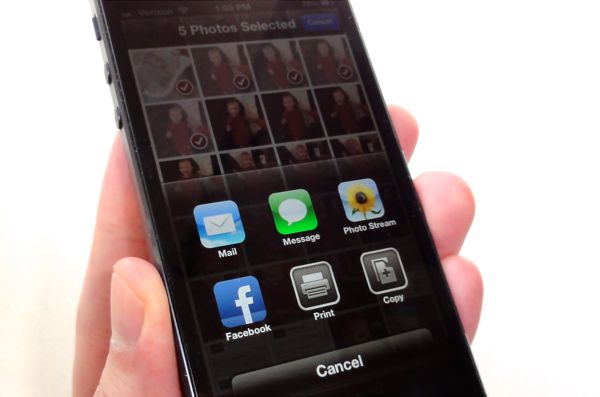
 You just squeezed off a series of art shots on your trusty iPhone and you’re dying to send them to your friends, but you’re not looking forward to tediously pasting each of photo into an email or picture message, one at a time.
Well, here’s the thing: it’s actually pretty easy to grab a series of snapshots from your iPhone’s camera roll and paste them—yes, all at once—into an email or an MMS.

Once you’ve tapped the Edit button, just select the photos you want to send via email or picture message, then tap Share.
Here’s how…
- Tap the Photos app on your iPhone’s home screen, then select Camera Roll or the album that contains the photos you want to send.
- Next, tap the Edit button in the top-right corner of the screen. When you do, the title of the screen will change to “Select Photos,” and you’ll see three new buttons at the bottom of the screen: Share, Add To, and Delete.
- Select the photos you want to send by tapping them one at a time. You can select up to 11 photos to send in a picture message, or five photos for email.
- Done selecting? Tap the Share button, then tap the Mail or Message button from the sharing window that appears; when you do, your iPhone will automatically paste the pictures into a new message. Can’t see the Mail or Message buttons? If so, that’s probably because you selected too many photos. (See the “bonus tip” below if you want to paste more than five photos into an email message.)
- Key in the recipients (and remember, you can choose multiple recipients for both email and picture messages) and a personal message, and then tap Send.
- Before the message goes on its merry way, you’ll be asked whether you’d like to re-size the photos. Why? Because the smaller the photos, the faster your iPhone will be able to send them. A full-size snapshot from your iPhone’s camera could take several minutes to send on a slower connection.
Bonus tip
Want to attach more than a mere five photos into an email message? Let’s do it.
- First, go back to a photo album, tap the Edit button, then select the photos you want to send—say, a couple dozen or so.
- Next, tap the Share button. You won’t see a Mail or Message option; instead, tap Copy.
- Go to the Mail app, create a new message, then tap and hold in the body of the message until a pop-up menu appears; when it does, tap Paste.
- Presto! All the photos you copied from the Photos app will paste themselves into your email message. Keep in mind, though, that the more pictures you paste into an email, the longer it will take to send.
Looking for more iPhone tips? Click here!


