

Getting shot before you even see the enemy is one of the most frustrating parts of Fortnite. Most of the time, the problem is not your aim. It is your settings.
The best Fortnite settings can fix this fast. Small changes to display, graphics, and controller options make a real difference in how the game feels.
Better FPS means smoother movement and quicker reactions in every fight. Clearer visuals help you spot enemies before they spot you, and the right sensitivity keeps your aim steady under pressure.
From PC and console to controller and mouse, these settings boost performance, improve visibility, and offer simple fixes for lag and input delay.
Why Fortnite Settings Matter for Better Gameplay?
Graphics, FPS, sensitivity, and controls shape how Fortnite feels to play. Small tweaks here make aiming, building, and moving around noticeably easier during matches.
Optimized settings can improve reaction time and help you spot enemies faster. They also keep the game running smoother, so your movements match what happens on screen.
There is no single perfect setup for everyone. The best settings depend on your PC hardware, console model, monitor refresh rate, and personal comfort level.
Test different combinations based on your goals. Some players prioritize higher FPS for smoother play, while others prefer sharper visuals over raw speed.
Competitive Settings at a Glance
Before the detailed breakdowns below, here is a fast reference of the core competitive settings across video, mouse, and controller. Use it as a starting point, then fine-tune to your hardware and comfort.
| Category | Setting | Recommended Value |
| Video | Window Mode | Fullscreen |
| Frame Rate Limit | Unlimited or monitor refresh rate | |
| Rendering Mode | Performance | |
| View Distance | Near for FPS, Far for visibility | |
| NVIDIA Reflex Low Latency | On + Boost | |
| Mouse | DPI | 800 |
| X/Y Sensitivity | 5% to 8% | |
| Targeting/Scope Sensitivity | 40% to 45% | |
| Controller | Look Speed | 37% to 40% |
| ADS Sensitivity | 9% to 13% | |
| Build/Edit Multiplier | 2.0x to 2.2x | |
| Aim Assist Strength | 100% |
Note: Once display, graphics, and controller settings are optimized, most Fortnite lag and input delay issues improve. Keeping graphics balanced, FPS capped, and drivers updated covers the main fixes.
Best Fortnite Settings for PC Performance

Your PC settings play a huge role in how Fortnite performs, affecting everything from FPS to how clearly you see enemies during fights.
1. Display Settings for Higher FPS
Display settings control how Fortnite renders on screen. Getting these right makes a big difference in how smooth and responsive the game feels while playing.
| Setting | Recommended Value | Why |
|---|---|---|
| Resolution | Native, or lower on weak PCs | Reduces GPU load and raises FPS |
| Window Mode | Fullscreen | Cuts down input delay |
| Frame Rate Limit | Match monitor refresh rate | Prevents screen tearing |
| VSync | Off | Removes extra input lag |
| Motion Blur | Disabled | Sharper, clearer movement |
Set these first before anything else. They form the base for every other graphics setting and noticeably improve responsiveness.
2. Graphics Quality Settings for Competitive Play
Competitive players lower most graphics settings on purpose. Clean visuals help spot enemies faster, and lower quality frees up resources for higher frame rates.
- Rendering Mode: Performance Mode for maximum FPS
- 3D Resolution: 100 percent if possible, lower if not
- View Distance: Medium or Far for better visibility
- Shadows: Off to boost FPS and cut clutter
- Textures: Low or Medium depending on hardware
- Effects: Low to reduce distractions
- Post Processing: Low for smoother gameplay
These plain settings might look basic next to high graphics mode, but that simplicity is exactly what helps players react faster and win fights.
Best Fortnite Settings for Maximum FPS

Getting the highest possible FPS takes a few extra tweaks beyond the basics, especially with newer graphics features that can quietly slow your system down.
1. Advanced Graphics Settings
These newer engine features look nice but come with a real FPS cost. Turning them off is one of the easiest ways to gain extra frames.
- Nanite Virtualized Geometry: Off for competitive FPS
- Lumen Global Illumination: Disabled for better performance
- Reflections: Off to reduce GPU usage
- Hardware Ray Tracing: Turn off
- Multithreaded Rendering: Enable if your CPU supports it
Disabling these settings can free up a surprising amount of performance, especially on mid-range hardware that struggles with modern rendering features.
2. Performance Tweaks for Low-End PCs
Low-end PCs need a bit more care to run Fortnite smoothly. Small changes outside the game settings menu can also make a noticeable difference in FPS.
- Lower your resolution scale
- Close background applications before playing
- Update GPU drivers regularly
- Use Performance Mode instead of higher quality rendering
- Adjust your FPS cap based on what your system can handle
These tweaks work best together. On their own, they help a little, but combined they can turn a laggy setup into a playable one.
Best Controller Settings for Fortnite

Getting your controller settings right can make aiming, building, and editing feel much smoother during matches.
1. Controller Sensitivity Settings
Sensitivity affects how smooth and accurate your aim feels. Most players pick a balanced range instead of extreme numbers, then adjust slightly based on comfort.
| Setting | Recommended Range | Why It Helps |
|---|---|---|
| Look Sensitivity | 40% to 50% | Balanced aiming, not too fast or slow |
| ADS Sensitivity | Lower than look sensitivity | Better accuracy when aiming down sights |
| Build Mode Sensitivity Multiplier | Higher | Faster building |
| Edit Mode Sensitivity Multiplier | Higher | Quicker edits during fights |
2. Controller Advanced Options
Advanced Options let you fine-tune your controller instead of relying on basic sliders. Here is what to adjust:
- Aim Assist: Keep enabled for smoother, more natural target tracking.
- Look Dampening Time: Lower it so your camera responds faster to stick movement.
- Input Curve: Pick Linear for quick, direct aiming or Exponential for smoother control.
Testing each option one at a time helps you notice what actually improves your gameplay instead of guessing.
Best Fortnite Keybinds for Keyboard and Mouse

Good keybinds help you react faster and switch between building and fighting without fumbling for the right key.
1. Recommended Competitive Keybind Setup
A solid keybind setup keeps your most important actions close to your natural hand position. Keep these tips in mind when setting yours up:
- Place build binds near your movement keys so you can react faster.
- Assign important building actions to mouse buttons for quicker access.
- Keep edit and reset binds within easy reach.
- Avoid putting more than one action on the same key.
Once your keybinds feel natural, you will spend less time thinking and more time reacting in fights.
2. Mouse Sensitivity Settings
Mouse sensitivity affects how precise your aim feels during fights and edits. A lower sensitivity paired with a larger mouse pad usually gives you more control.
- DPI: Use around 800, a common range among competitive players.
- In-Game Sensitivity: Keep it balanced with your DPI for consistent aim.
- ADS Sensitivity: Lower this for more accurate tracking while aiming down sights.
Small adjustments over time work better than big changes, so give yourself a few matches before deciding what feels right.
Best Fortnite Console Settings (PS5, Xbox, Switch)
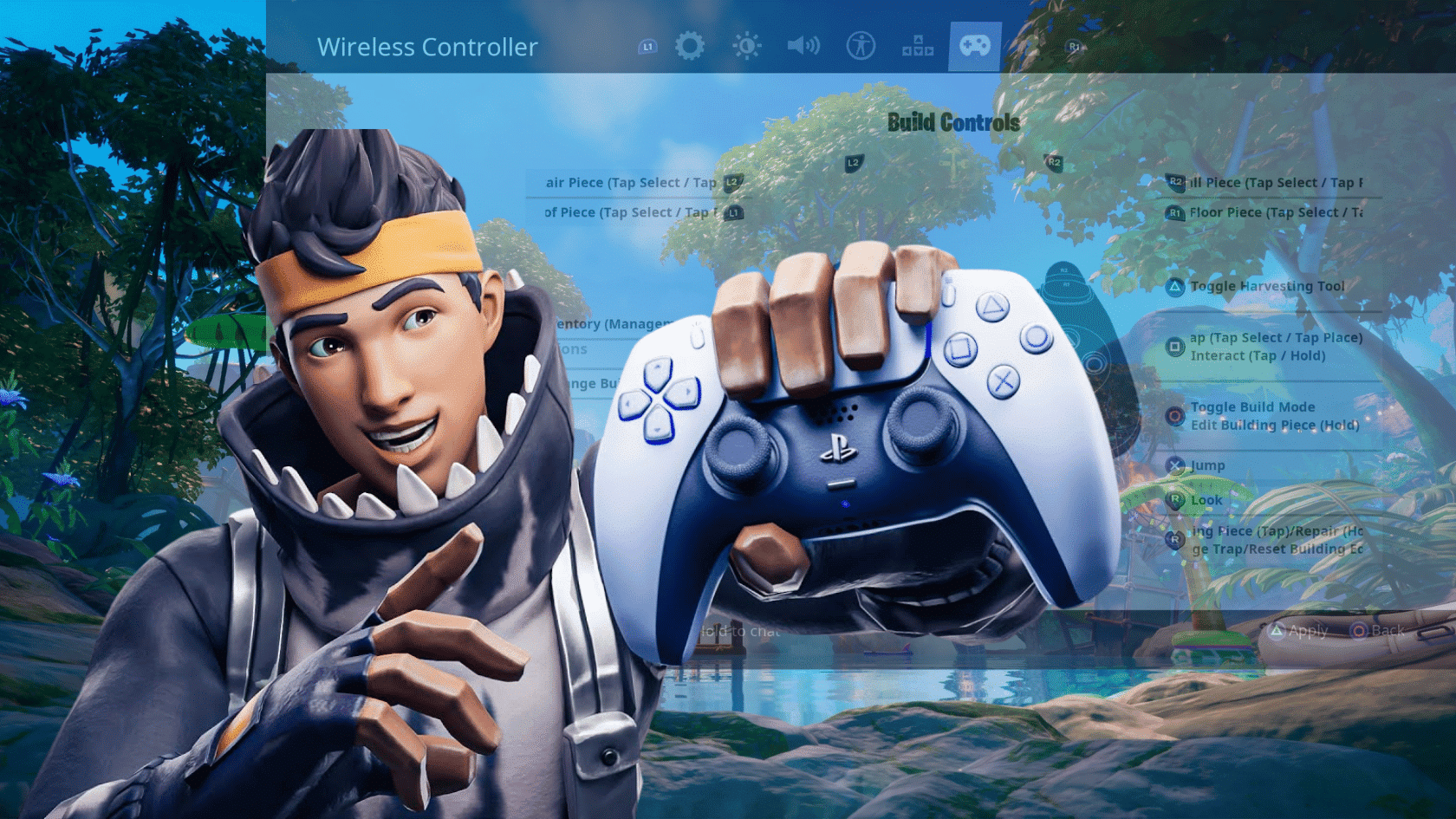

Console players want the same edge that PC players chase, and the right settings can get you there. From frame rate to controller comfort, small changes add up fast.
1. Console Performance Settings
Small setting changes can make console gameplay feel faster and smoother. Here are the settings that matter most for better performance.
- 120 FPS Mode: Turn this on if your console and TV support it. It makes movement and aiming feel noticeably smoother during fast fights.
- Performance Mode: Pick this instead of Quality Mode. It focuses on frame rate over visuals, which helps more when things get intense.
- Visual Effects: Turn off effects you do not need. Fewer distractions on screen lead to quicker reactions and cleaner visibility.
- Display Choice: Play on a monitor or TV known for low input delay. Less lag between your button press and screen response gives you an edge.
2. Console Settings Compared: PS5, Xbox, and Switch
Each console handles Fortnite a little differently, so the best settings vary by platform.
This table shows where they line up and where they differ:
| Setting | PS5 / Xbox Series X|S | Nintendo Switch |
| Max Frame Rate | Up to 120 FPS supported | Capped at 30 FPS |
| Performance Mode | Available, recommended on | Not available |
| Recommended Display | 120Hz TV or monitor, low input lag | Handheld screen or standard TV |
| Vibration | Turn off for steadier aim | Turn off for steadier aim |
| Dead Zones | Lower, raise slightly to fix stick drift | Slightly higher, Joy-Con drift is common |
| Best For | Fast, competitive play | Casual and portable play |
Dial in the platform-specific settings above, and your aim will feel steadier and more consistent match after match, whichever console you play on.
What Settings Do Pros Use?
Professional Fortnite and esports players tunetheir settings for one thing: raw performanceand clear visibility. Most run graphics on Low or Performance presets to lock in the highest stable FPS, with V-Sync, shadows, and motion blur switched off to cut input lag and on-screen clutter.
On PC, they favor a mouse DPI of 400 to 800 with a 1000Hz polling rate, mouse acceleration and angle snapping fully disabled, and raw input enabled for consistent aim.
Fullscreen mode keeps system resources focused on the game, and features like NVIDIA Reflex reduce latency further. The theme across every pro setup is the same: strip away visual extras so reactions stay fast and enemies are easy to spot.
Network and System Improvements
Your network setup shapes how responsive the game feels, so sorting these basics first makes every other tweak work better, and it matters even more for cloud gaming where everything runs over your connection.
- Go wired: Use an Ethernet cable instead of Wi-Fi whenever possible for a stabler, lower-latency connection.
- Pick the closest region: Select the nearest matchmaking region to cut down on ping during matches.
- Restart regularly: Reboot your router and the game often to clear out slowdowns that build up over time.
- Free up storage: Keep enough space available on your device, since a full drive can drag performance down.
- Pause downloads: Avoid updates or downloads while playing, as they eat bandwidth and cause spikes.
Getting the network solid first gives every in-game setting a stronger foundation to build on.
Final Thoughts
Getting the best Fortnite settings comes down to matching your setup with your playstyle instead of copying someone else’s exact numbers.
Take a moment to try out the display, graphics, and controller tweaks covered here and see what feels right for your hardware and comfort level.
These changes can genuinely improve your FPS, aim, and visibility during matches, giving you a real edge in fights.
Small adjustments over time work better than switching everything at once, so give each change a few matches before deciding what sticks.
What settings have worked best for you? Drop your favorite tweaks in the comments below.
Frequently Asked Questions
How to Get Good Aim in Fortnite Settings?
Lower your overall sensitivity slightly and lower your ADS sensitivity even more for steadier tracking. Pair this with regular practice in creative aim maps for faster improvement.
What Is the Best FOV Setting in Fortnite?
Most competitive players use a Field of View between 90 and 100 to spot enemies on the sides of the screen. Higher FOV can feel disorienting, so test smaller increases first.
Do Fortnite Settings Carry Over Between Devices?
Fortnite settings are usually tied to your account, not your device, so most changes carry over automatically. Some hardware-specific options like resolution may still need adjusting on each device.


