
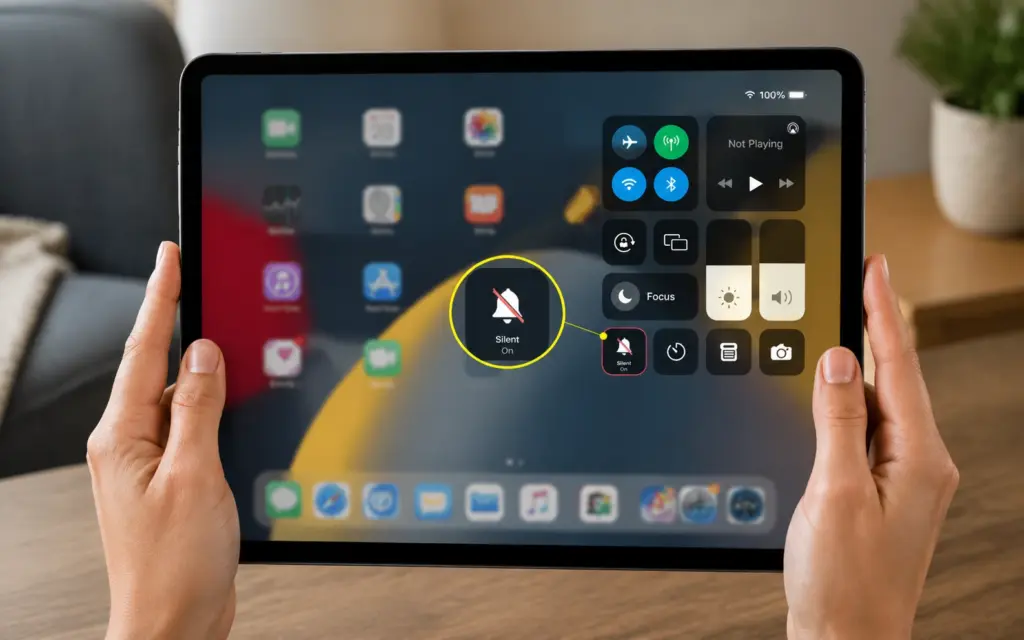
An iPad has a real talent for picking the worst moment to make noise. A calendar alert in a meeting, a FaceTime ring in a quiet library, a stray ding the second a toddler finally naps.
The good news is that silencing it takes seconds once you know which control does what.
This walkthrough covers how to turn off ringer on ipad using every reliable method, from the one-tap Control Center switch to Settings, the volume buttons, Focus modes, and an accessibility route for anyone who cannot reach the buttons.
There is also a fix for the classic problem of an iPad ringing every single time an iPhone does. Pick the method that matches your situation, and the room goes quiet.
What Turning Off the Ringer Actually Does
Turning off the ringer on an iPad silences incoming call and alert sounds, mostly through Silent Mode, while media, alarms, and some app audio keep playing unless you change those separately.
That single distinction trips up a lot of people. Silent Mode is the main switch for calls, alerts, and notification tones, yet it leaves videos, music, games, and Clock alarms fully audible.
The volume buttons only lower the volume they control, so they can mute media without affecting the ringer at all.
Focus, including Do Not Disturb, pauses calls and notifications while it runs, though media and any contacts you allow still come through. Pick the control that matches the exact sound you want gone.
How To Turn Off Ringer On iPad: Various Methods
Different situations call for different controls. Here are six reliable ways to turn off the ringer on an iPad, so you can match the method to the moment.
Method 1: Using Control Center
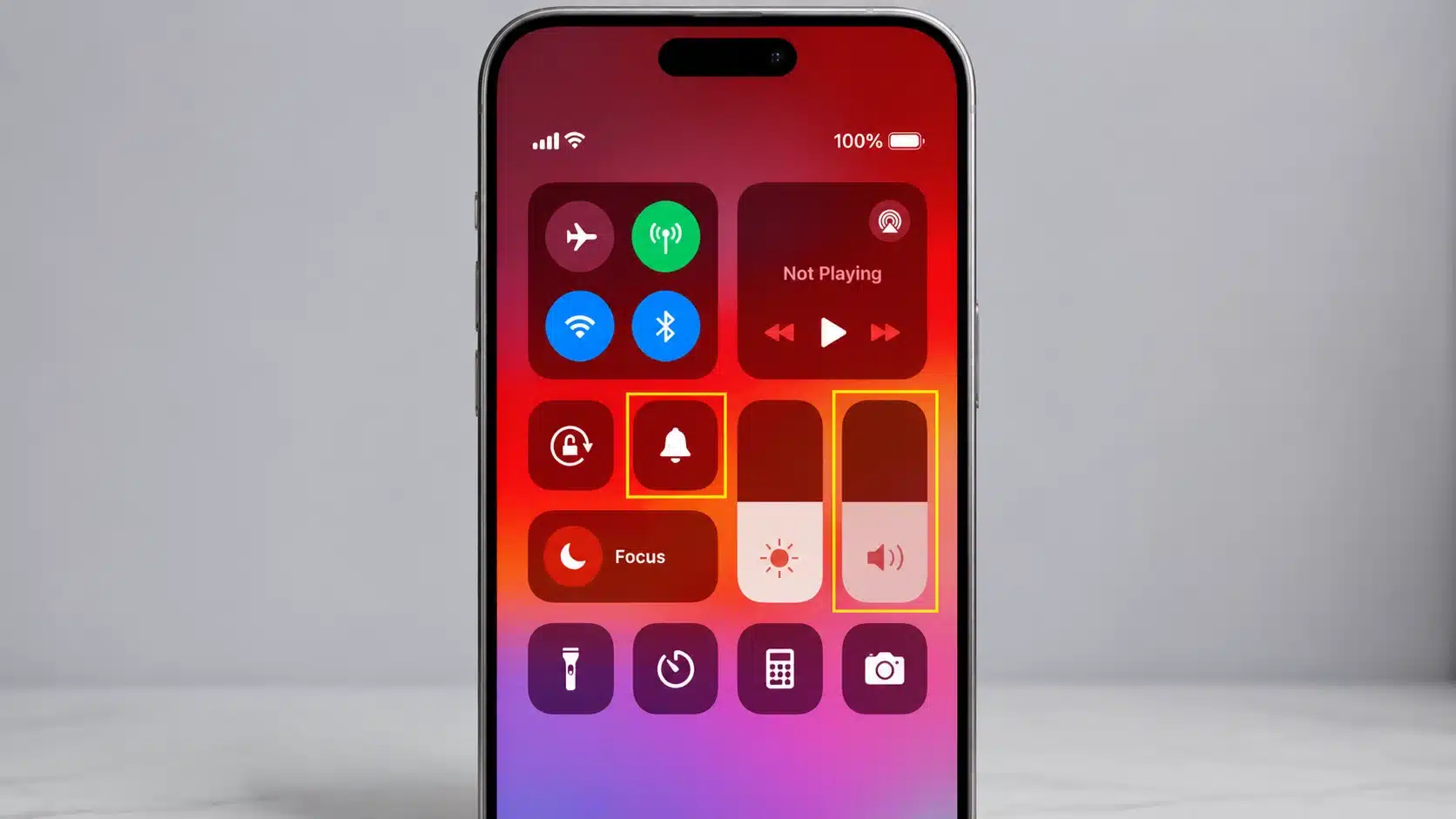
The quickest option keeps Silent Mode one tap away and leaves every other sound setting untouched. It works on all current iPad models running recent iPadOS versions.
Steps to do it:
- Swipe down from the upper-right corner to open Control Center.
- Tap the bell icon to highlight Silent Mode.
- Check that the bell shows a line through it.
Once the bell is active, calls and alerts remain quiet while your media and alarms continue as normal.
Method 2: Using the Settings App
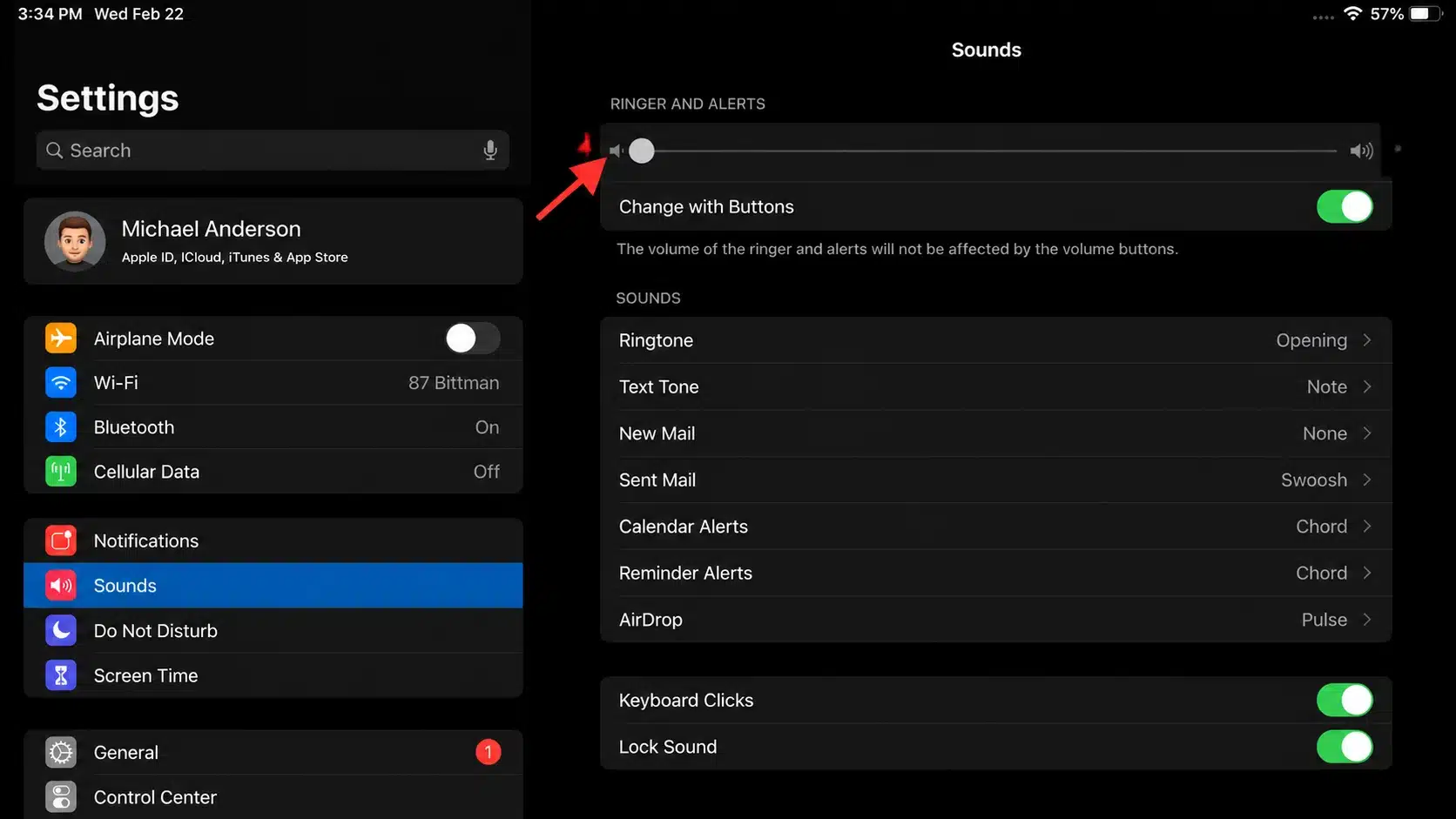
Settings gives finer control over how loud alerts get, which suits anyone who wants to lower the ringer rather than mute it outright.
Steps to do it:
- Open the Settings app on the Home Screen.
- Tap Sounds, or Sounds and Haptics on newer models.
- Drag the Ringer
- Alerts slider fully to the left.
Pulling the slider to zero mutes the ringer and flips on Silent Mode at the same time.
Method 3: Using the Volume Buttons
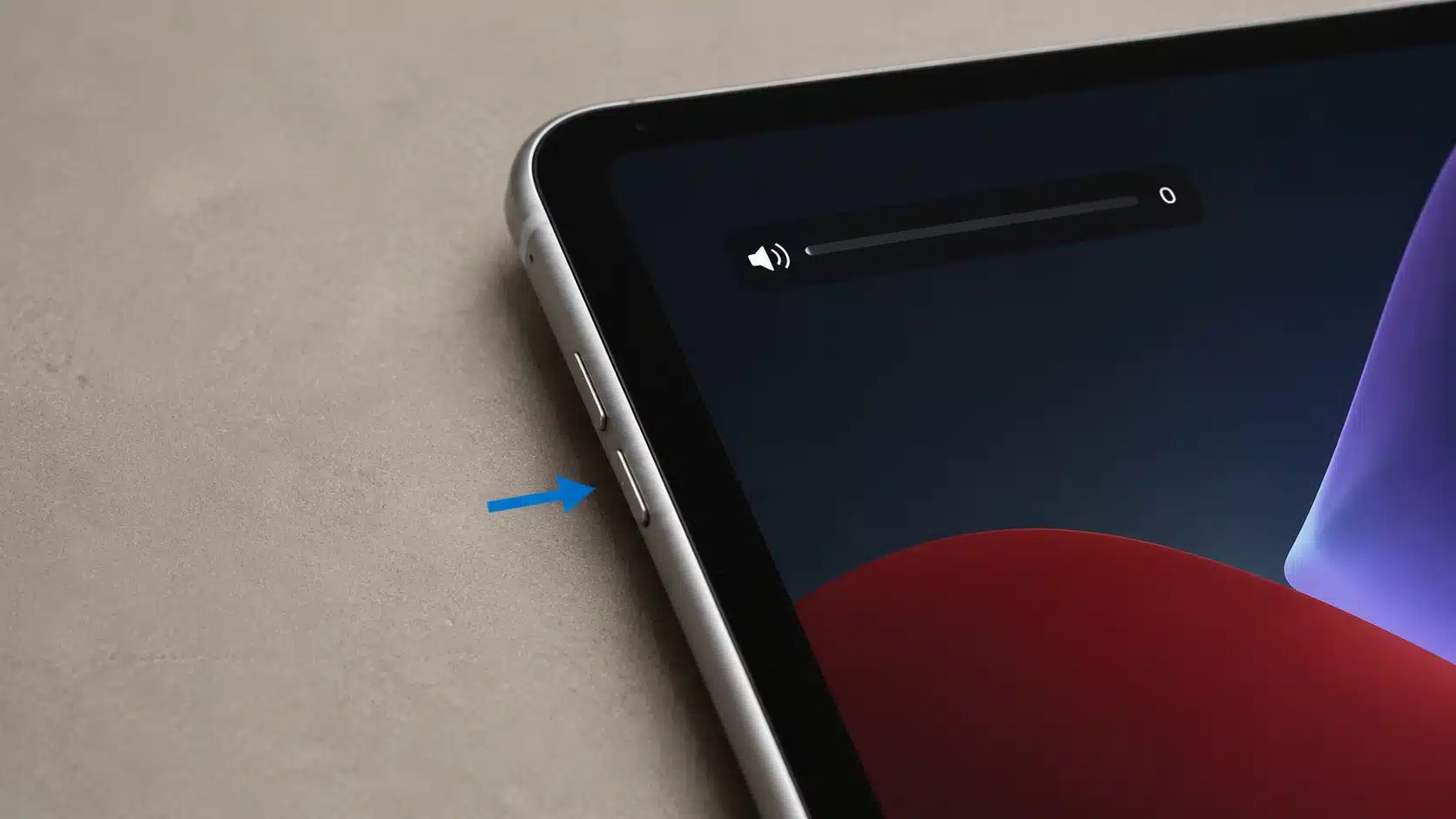
The side volume buttons offer a quick physical mute, though on many iPads they lower the media volume by default unless the ringer is linked to them in Settings.
Steps to do it:
- Hold the Volume Down button until the on-screen level hits zero.
- Confirm the volume bar has bottomed out.
- To mute alerts too, open Sounds and Haptics
- Turn on Change with Buttons.
With Change with Buttons on, the same press that lowers media also drops the ringer.
Method 4: Use Do Not Disturb Mode
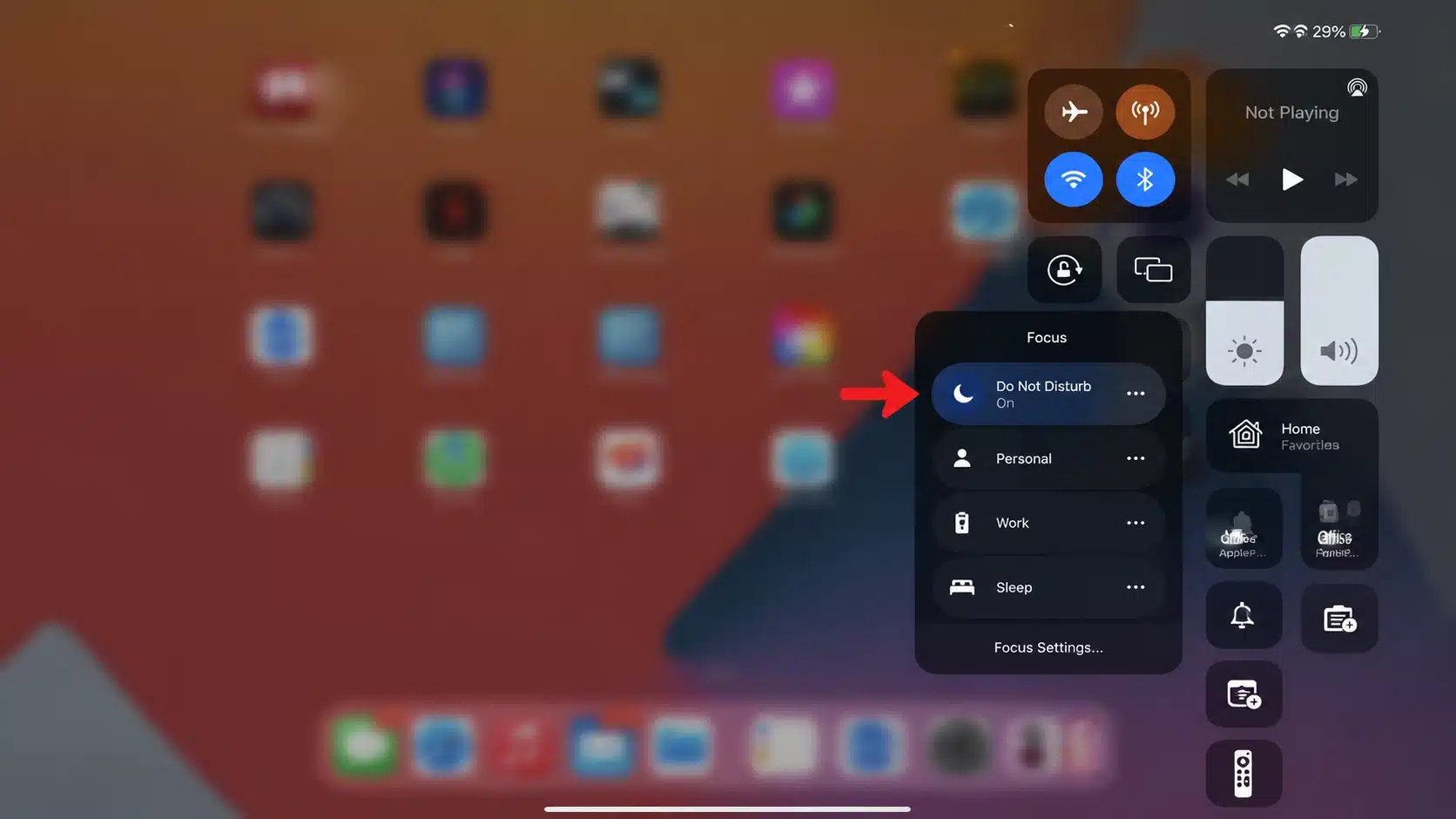
Do Not Disturb, part of Focus, mutes calls and notifications on a schedule, which is ideal for sleep, work, or study blocks rather than a one-off mute.
Steps to do it:
- Swipe down from the top-right to open Control Center.
- Tap Focus, then choose Do Not Disturb to start it now.
- In Settings, Focus, set start
- End times for automatic quiet.
Once scheduled, the iPad silences itself during those hours and brings sound back when they end. You can still let calls from chosen contacts through inside the Focus settings.
Method 5: Silence the Ringer With AssistiveTouch
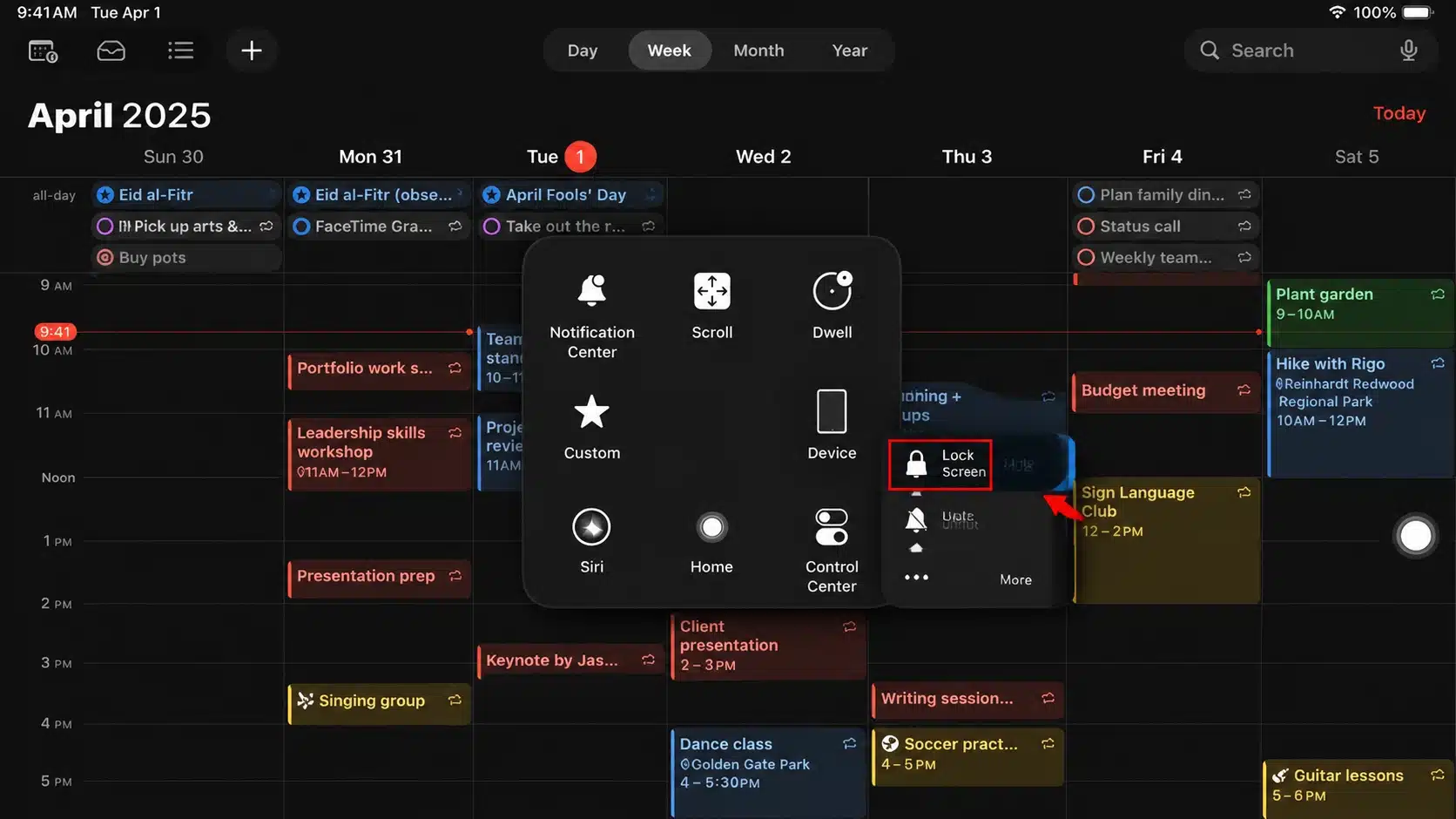
AssistiveTouch adds an on-screen menu that can mute the device, a dependable route when physical buttons are hard to press. It is the option I suggest for anyone with limited hand mobility.
Steps to do it:
- Open Settings > Accessibility > Touch, then turn on AssistiveTouch.
- Tap the floating button, then tap Device.
- Tap Mute to silence alerts
- Unmute to bring sound back.
The floating control stays on screen, so muting no longer depends on the side buttons.
Method 6: Set Individual Alert Tones to None
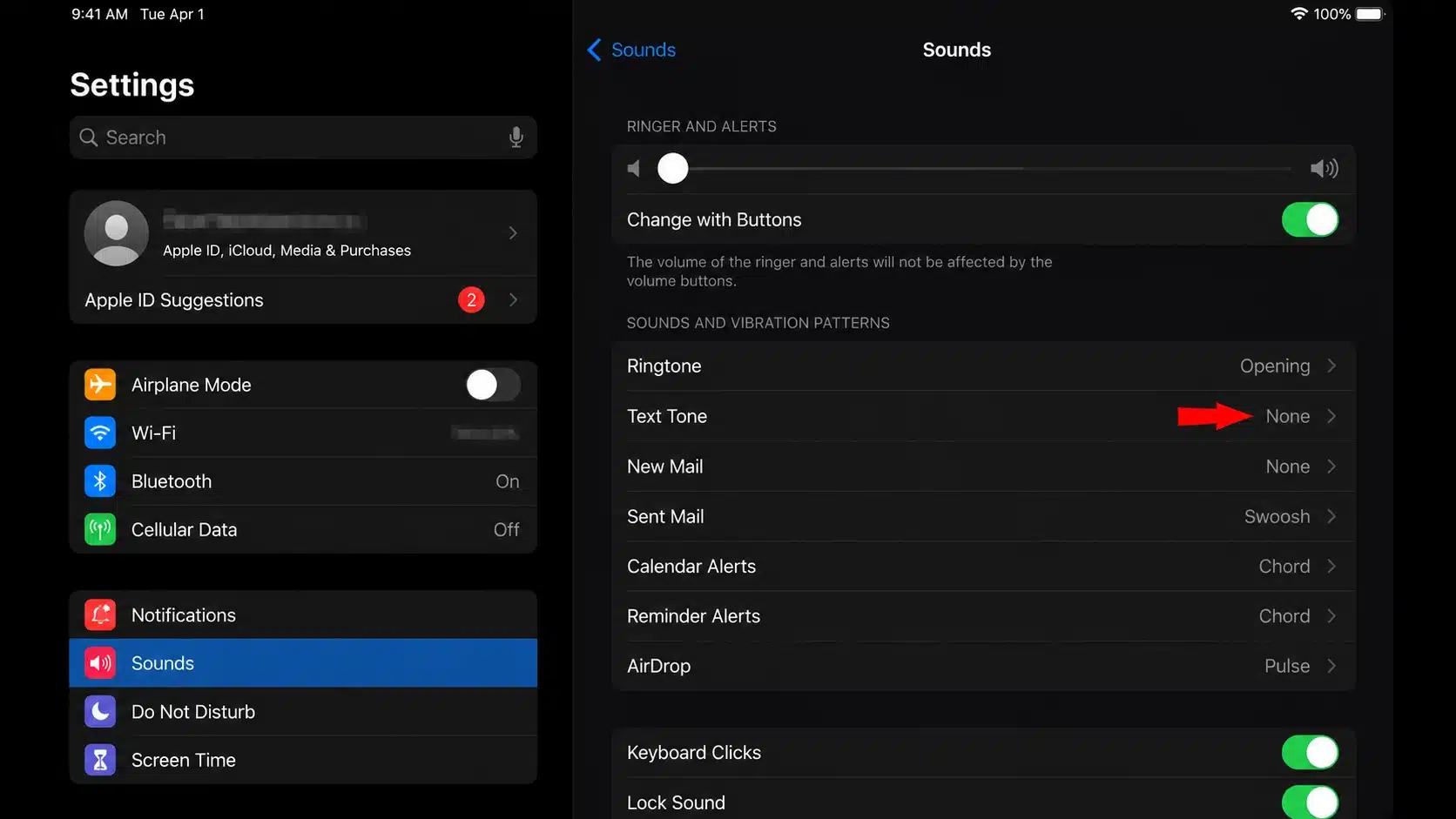
For pinpoint control, switch off specific alert sounds one by one while keeping the rest. Handy when a single noise, like text tones, is the real problem.
Steps to do it:
- Go to Settings, then Sounds and Haptics.
- Tap an alert type such as Text Tone or New Mail.
- Set it to None to silence that alert alone.
This leaves your ringer and every other sound untouched, so only the alert you picked goes quiet.
Why Is My iPad Still Making Noise?
An iPad keeps making noise after you mute the ringer because Silent Mode only covers calls and alerts, not media, alarms, or app-controlled audio, each of which follows its own settings. Here is what is likely still playing and how to stop it.
| Sound source | Why it still plays | Quick fix |
| Media (video, music, games) | Ignores Silent Mode and tracks the media slider | Lower media with the volume buttons while it plays |
| Clock alarms | Built to sound even on silent, by design | Edit or delete the alarm in the Clock app |
| Keyboard clicks | Have a separate toggle | Turn off Keyboard Feedback in Sounds and Haptics |
| App-run audio | Some apps manage sound internally | Check the app’s own settings or Notifications |
| Shared iPhone calls | A separate cross-device setting | Turn off Calls from iPhone, covered next |
Apple’s support forum has a long-running thread where users work through the same lingering-sound puzzle, and the fixes there align with the points above.
How Do You Turn Off Phone Calls On Your iPad?
Here is the complaint I hear most: the iPad rings every time the iPhone does. That happens because Apple lets calls ring across devices signed into the same account, and one toggle stops it.
- Open Settings on the iPad, then tap FaceTime.
- Turn off Calls from iPhone.
- To also block cross-device calls, open the iPhone, go to Settings, Apps, Phone, Calls on Other Devices, and switch off the iPad.
Note: Menu names shift slightly between iPadOS versions. On some, Phone and FaceTime settings sit inside an Apps list rather than the main menu.
Final Takeaway
Quieting an iPad comes down to matching the tool to the moment. For instant silence, the Control Center bell wins every time.
For finer control, Settings lets you dial the ringer down or shut off a single alert, while Focus handles the scheduled quiet.
Once you know how to turn off ringer on iPad through these methods, the device stops ambushing you at the wrong moment. Anyone who cannot use the buttons has AssistiveTouch, and the FaceTime toggle ends the shared-ringing headache for good.
Which iPad model are you using, and which setting finally did the trick? Drop it in the comments so others on the same model can copy your fix.
Frequently Asked Questions
How Do I Turn Off the Typing Sound on an iPad?
Open Settings, tap Sounds and Haptics, then turn off Keyboard Feedback or Keyboard Clicks on older versions. That stops the tap sound as you type while leaving your ringer, alerts, and every other sound setting exactly as they were.
Can I Silence an iPad Without a Ring Switch?
Yes. Current iPads have no physical ring switch, so Silent Mode is software-based. Swipe down for Control Center and tap the bell, or drag the Ringer and Alerts slider to zero in Sounds and Haptics. Both mute calls and alerts instantly.
Do Alarms Still Ring When the iPad Is on Silent?
Yes. Clock alarms are built to sound even in Silent Mode or Do Not Disturb, so a muted iPad will still wake you. To stop one, edit or delete the alarm directly inside the Clock app rather than relying on the ringer settings.


