

Missed aerials. Lost duels by a split second. Felt like your setup was working against you instead of for you.
Small tweaks to your camera, controller, and video settings change everything. The best Rocket League settings sharpen your awareness, speed up reactions, and make every input feel natural.
These fixes are not random. They come from what competitive players actually use to stay consistent under pressure.
Camera angles, PS5 tweaks, audio cues, and controller bindings all play a part, and together they give your gameplay a real edge, match after match.
Quick Overview of Best Rocket League Settings
These are the top settings to use if you’re short on time. Turn camera shake off and set your FOV to 110 for a wider view of the field.
Distance should sit around 270, with height between 100 and 110. Keep the angle between -3 and -4, and stiffness around 0.35 to 0.45.
For controls, steering and aerial sensitivity work best between 1.5 and 1.6. Set controller deadzone to 0.05-0.10 and dodge deadzone to 0.60-0.70 for cleaner inputs.
Finally, turn V-Sync off, use fullscreen display mode, and match your FPS to your monitor’s refresh rate for the smoothest performance.
Best Rocket League Settings Explained
Copying values is easy, but knowing why each one matters helps you adjust them to your own play. Here is the full breakdown, setting group by group:
1. Best Rocket League Camera Settings

Your camera controls how much of the field you see and how well you read plays. A wider, lower setup gives the awareness needed to track the ball, opponents, and rotations at once.
- Camera Shake: Off, to remove visual distractions
- FOV: 110, for the widest useful field awareness
- Distance: 270, balancing car visibility and vision
- Height: 100 to 110, keeping the car centered
- Angle: -3.0 to -4.0, for cleaner aerial reads
- Stiffness: 0.35 to 0.45, for smoother tracking
- Swivel and Transition Speed: 4 to 5.5 and 1.0 to 1.2, for quick, smooth camera movement
- Ball Camera: Toggle, for easier control during plays
Getting these camera settings right sets the foundation for sharper reads and faster reactions in every match.
Why Pros Use 110 FOV in Rocket League?
A 110 FOV gives a wider view of the field, and most RLCS players use a similar setup for better awareness.
2. Best Rocket League Controller Settings

Your controller settings decide how precise and consistent your car control feels. Balanced sensitivity with low dead zones gives quick, tight inputs without the twitchiness that extreme numbers cause.
- Steering Sensitivity: 1.5 to 1.6, for quick turns without losing control
- Aerial Sensitivity: 1.5 to 1.6, for faster mid-air adjustments
- Controller Deadzone: 0.05 to 0.10, for quicker stick response
- Dodge Deadzone: 0.60 to 0.70, to reduce accidental flips
- Controller Vibration: Off, to remove distractions
Fine-tuning these builds the mechanical consistency needed for cleaner aerials and sharper car control over time.
3. Best Rocket League Controller Bindings

Competitive players move away from default bindings for faster, more comfortable control. The goal is to boost, roll, and steer at once without ever lifting your thumb from the right stick.
- Boost: RB or R1, to boost while still adjusting the car
- Air Roll and Powerslide: LB or L1, for better aerial control and recoveries
- Jump: A or X, kept on default for most players
- Ball Cam: Y or Triangle, for easy toggling mid-play
- Directional Air Roll: bound separately by advanced players for precise aerials
Once these feel natural, your hands react on instinct rather than searching for the right button.
4. Best Rocket League Video Settings for Performance
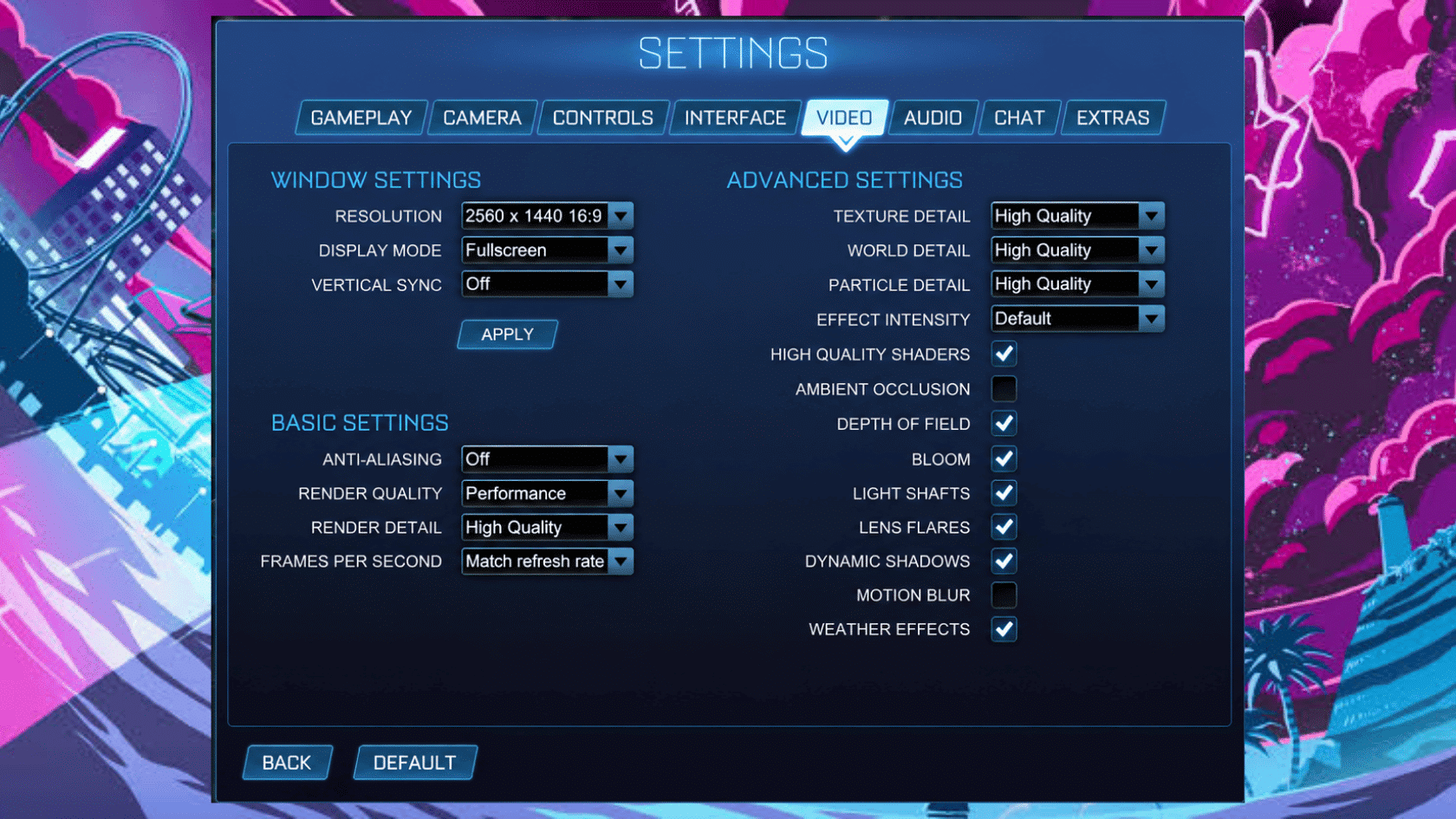

Video settings shape how responsive the game feels. Competitive players lower visual effects on purpose, since stable frames and low input delay matter far more than graphics when every second counts.
- Display Mode: Fullscreen, for the lowest input delay
- V-Sync: Off, to remove extra input lag
- FPS Cap: Match your monitor refresh rate
- Render Quality: Performance, for stable frames
- Motion Blur: Off, for sharper movement
- Ambient Occlusion: Off, to free up performance
Keeping these low is not about a plain look. It gives your system the best chance to run smoothly at the worst possible moment, which matters even more for cloud gaming where every frame travels over your connection.
5. Best Rocket League Audio Settings

Sound matters more in competitive play than most realize, since cues often reveal a play before you see it. The right balance keeps key effects sharp while cutting noise that pulls your focus.
- Master and Gameplay Volume: 80 to 100% and 100%, to keep demos, touches, and boosts clear
- Music: 0%, to stay focused on gameplay cues
- Ambient and Crowd: Low, so key sound effects cut through during intense plays
This small adjustment gives you one more edge, and over time it becomes a natural part of your setup.
6. Best Rocket League Interface Settings

Interface settings seem minor but affect how fast you process information mid-match. Clear, readable visuals help you make quicker decisions when plays develop at speed.
- Nameplate Scale: 100 to 130%, to spot teammates and opponents at a glance
- Team-Colored Boost Meter: Optional, but handy for tracking boost quickly
- Competitive Rank Visibility: On, for useful in-match context
- Cross-Platform Play: On, for faster queues and a smoother experience
Small as they are, these tweaks keep the information you need visible without adding clutter to the screen.
7. Best PS5 Rocket League Settings

PS5 players can fine-tune a few extra settings to get the most stable and responsive gameplay.
- Performance Mode: Enable it if available to boost frame rate and reduce input delay.
- 120Hz Display: Use a compatible display to unlock smoother, faster-paced gameplay.
- V-Sync and FPS: Disable V-Sync and set the highest stable FPS for quicker response times.
- Controller Vibration: Turn it off and adjust the deadzone based on your controller’s condition, raising it slightly if stick drift causes unwanted movement.
- Bumper Boost: Set boost to a bumper for faster reactions during ranked and training alike.
These settings help PS5 players keep input latency low and performance steady in every match.
Why Are Pros Using These Settings?
Every pro setup chases the same goal: the cleanest possible link between what you see, what you press, and what the car does.
The specific numbers vary slightly from player to player, but the logic behind them is remarkably consistent:
- Wide vision beats detail: A 110 FOV and 270 distance give the peripheral awareness needed to track the ball, opponents, and rotations at once.
- Low deadzones mean instant response: A 0.05 deadzone makes the stick react to the smallest movement, giving the fine control seen in players like Zen and M0nkey M00n.
- Bindings that never lift the thumb: Boost on RB and air roll on LB let pros boost, roll, and steer at the same time without leaving the right stick.
- Performance over polish: V-Sync off, effects low, and music muted strip away input lag and distraction, so reactions stay fast under pressure.
- Sound as an early warning: High SFX with low background noise lets audio cues like demos and touches register before the play is even visible.
The takeaway: pros do not use these settings to look flashy. They use them to remove every small obstacle between decision and action.
How to Find Your Perfect Rocket League Settings?
These recommendations give you a solid starting point, but every player is different. Testing them in Free Play first helps you get comfortable before jumping into ranked.
Avoid changing your settings every match, since constant switching makes it harder to build muscle memory. Instead, adjust one setting at a time and give it a few sessions.
After each change, spend time practicing aerials, recoveries, and basic mechanics. This helps you notice what actually feels better and settle on a setup that fits your own playstyle.
Final Thoughts
Better gameplay rarely comes down to raw skill alone. Most of it starts with a setup that actually works with you, not against you.
The best Rocket League settings bring your camera, controller, video, and audio together into one smooth system. Once everything lines up, aerials feel sharper, reactions come faster, and matches feel far more consistent.
Adjust one setting at a time, test it in Free Play, then build from there until your setup feels like second nature.
Put these settings into your next session and see the difference for yourself.
What settings work best for you? Drop a comment below and let us know.
Frequently Asked Questions
What Camera Settings Does Zen Use?
Zen runs Camera Shake off, FOV 110, Distance 270, Height 100, Angle -3.0, Stiffness 0.35, and Swivel Speed 4.0, with Ball Camera on Toggle. It is one of the most copied pro setups.
What Are the Best Rocket League Settings for Xbox?
Xbox players should mirror the PC competitive values: FOV 110, Distance 270, low deadzones, and boost bound to RB. Enable Performance Mode on Series X|S for the smoothest frame rate.
What Is the Best Deadzone for Rocket League?
Most pros use a controller deadzone around 0.05, raising it slightly only if stick drift causes unwanted movement. Dodge deadzone sits higher, near 0.70, to stop accidental flips.
Do Rocket League Settings Reset After an Update?
Some updates can reset certain video or controller settings to default. Check your setup after every major patch so you are not playing with unwanted changes mid-ranked.


