A Honeywell thermostat that freezes, shows the wrong temperature, or drops Wi-Fi can make a whole house uncomfortable. A restart or model-specific reset can sometimes clear the problem in minutes.
To reset a Honeywell thermostat, find the model number, then use that model’s Menu, Advanced Setup, button combination, or installer code. Most models have no dedicated reset button. Local resets work without Wi-Fi or internet. Factory Reset restores defaults, Wi-Fi Reset clears network data, and Schedule Reset removes programs.
Reset steps differ by model, and the wrong button press does nothing. Find your model number first, pick the lightest reset that fits the symptom, then follow the steps for your unit.
How to Find Your Honeywell Thermostat Model Number
Similar-looking thermostats can use different menus and button combinations. Check these places:
Where to look | How to find it | Applies to |
|---|---|---|
Back of the thermostat | Remove it from the wall plate, following the manual, and read the label | Many digital and smart models |
Thermostat screen | Open Menu, then Thermostat Information or Device Information | Touchscreen models |
Resideo app | Select the thermostat and open its device information | App-connected models |
Box or manual | Check the printed label | All models |
Write down the full model number. TH6320WF2 and TH6320U2008 are different models with different steps. If you cannot identify your unit, use the Honeywell Home thermostat support page to find its documentation.
Before a factory reset, record your system type, heating and cooling stages, and other Installer Setup (ISU) settings. ISU is the menu that tells the thermostat how to run your equipment. A factory reset does not reset the furnace or AC, but it can erase that configuration. If you do not know the settings, check the installation manual or ask an HVAC professional.
How to Reset a Honeywell Thermostat by Model
Match your model to a section below. Honeywell’s official reset guide lists each supported procedure.
1. Honeywell Home T9
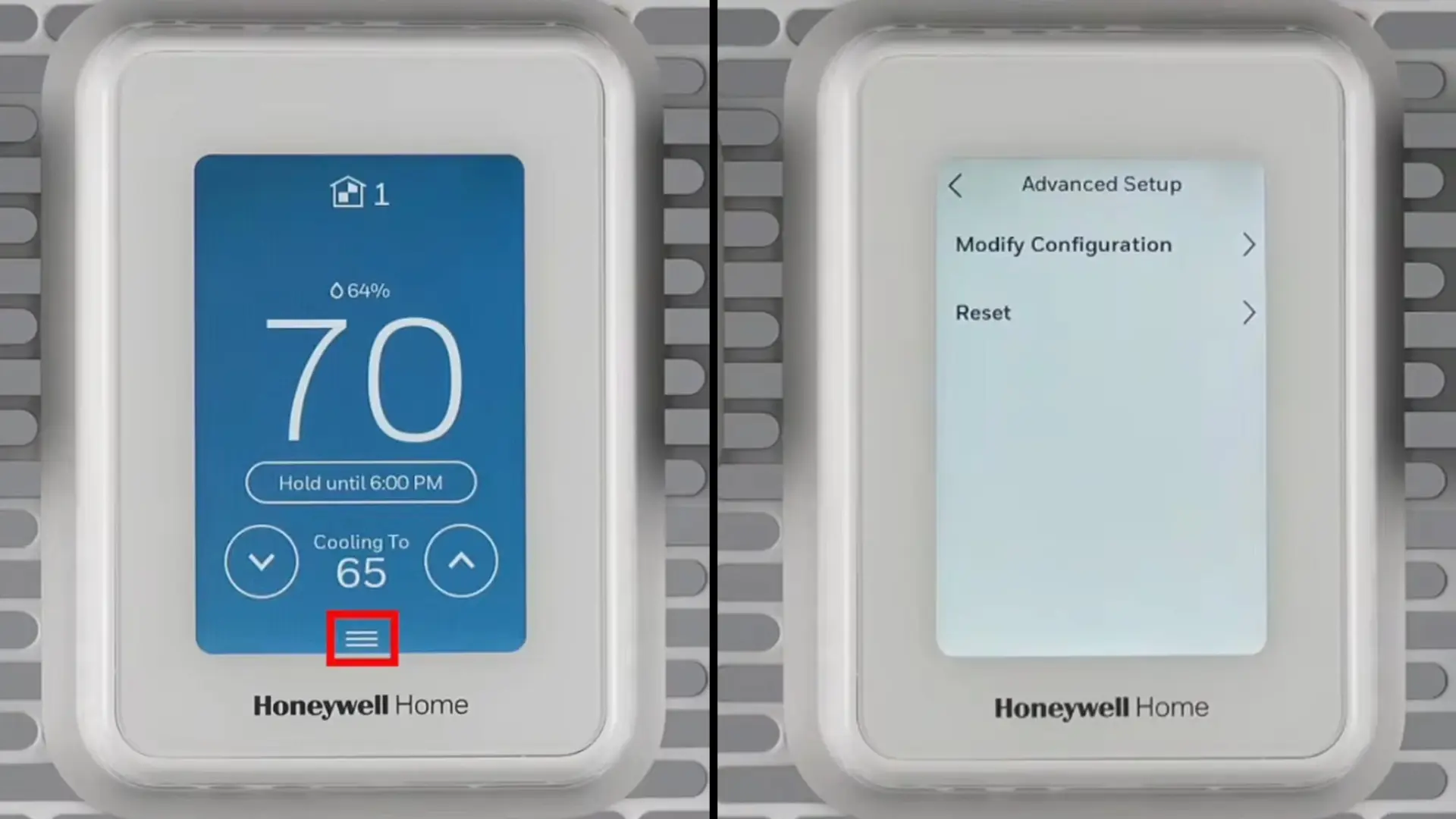
The T9 has a touchscreen.
Tap Menu, then Advanced Setup, then Reset.
Choose Factory Reset, Schedule Reset, or HomeKit Reset.
Confirm when prompted.
For a new router or password, go to Menu > Wi-Fi > Change Network. The T9 has no separate Wi-Fi Reset option.
2. Honeywell Home: T6 Pro Wi-Fi
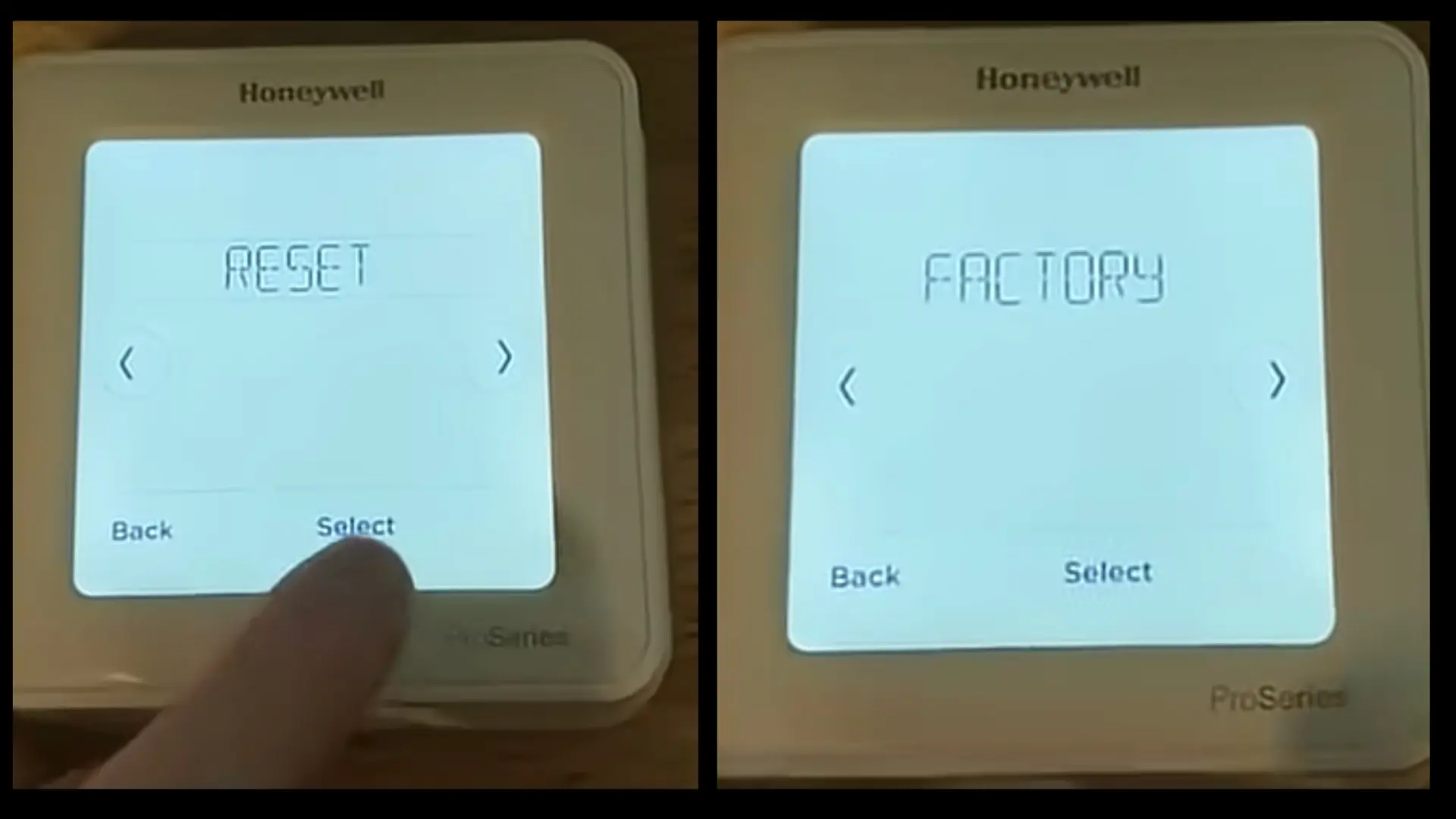
These models use a Menu-based reset, including the T6 Pro Wi-Fi (TH6320WF2 and TH6220WF2).
Press and hold Menu.
Press the right arrow until Reset appears, then select it.
Choose Factory Reset, Wi-Fi Reset, or Schedule Reset, then confirm.
Use Wi-Fi Reset after a router or password change to keep other settings.
3. Honeywell Home FocusPRO 6000
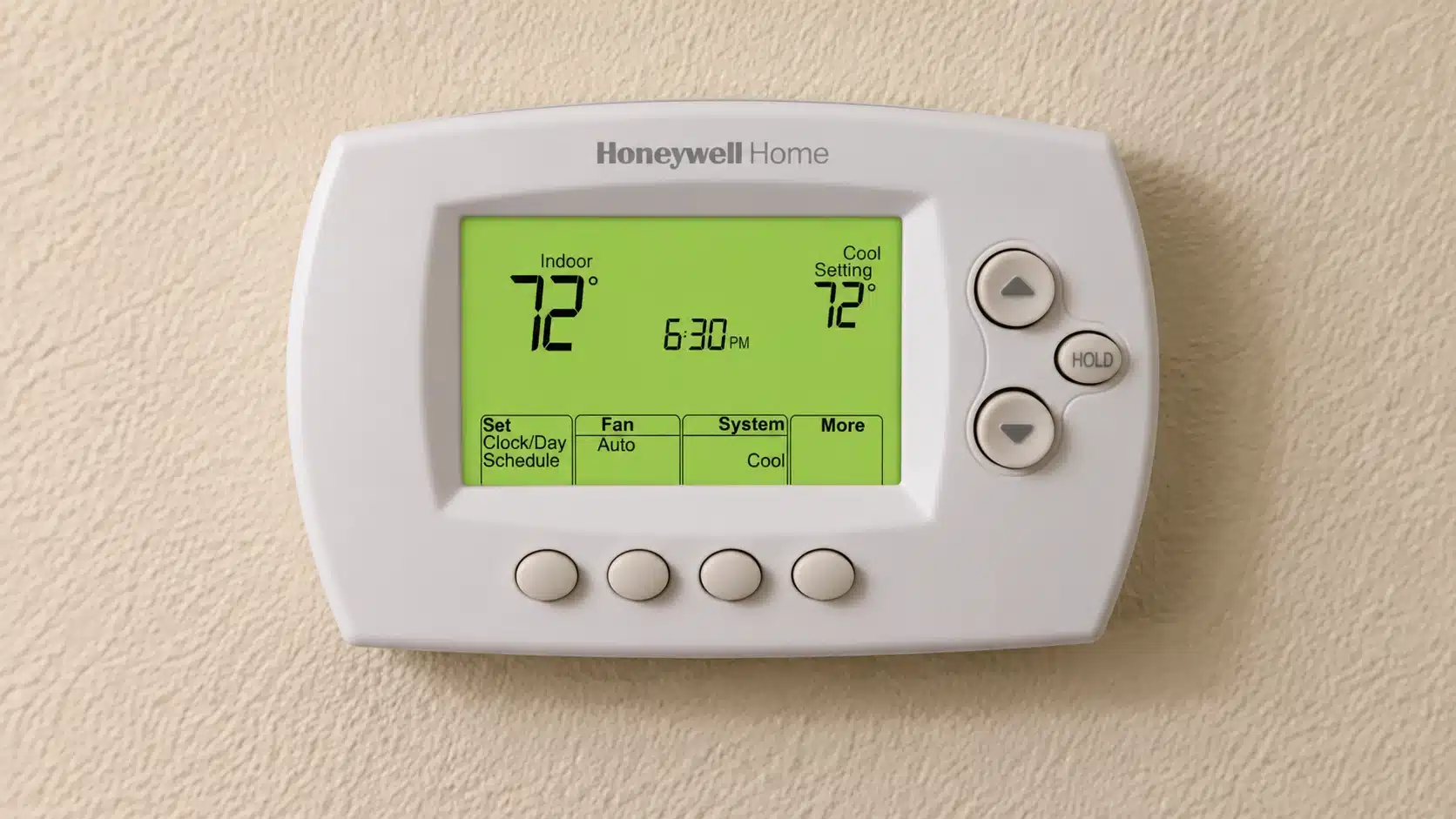
Some FocusPRO 6000 Wi-Fi models, including TH6320WF1 and RTH6580WF, use function codes.
Hold the Up Arrow and Fan together.
Enter the function number and setting.
Press Done.
Factory reset is 90/1, Wi-Fi reset is 39/0, and schedule reset is 85/1. Confirm the codes in your manual first.
4. Honeywell Home VisionPRO 8000
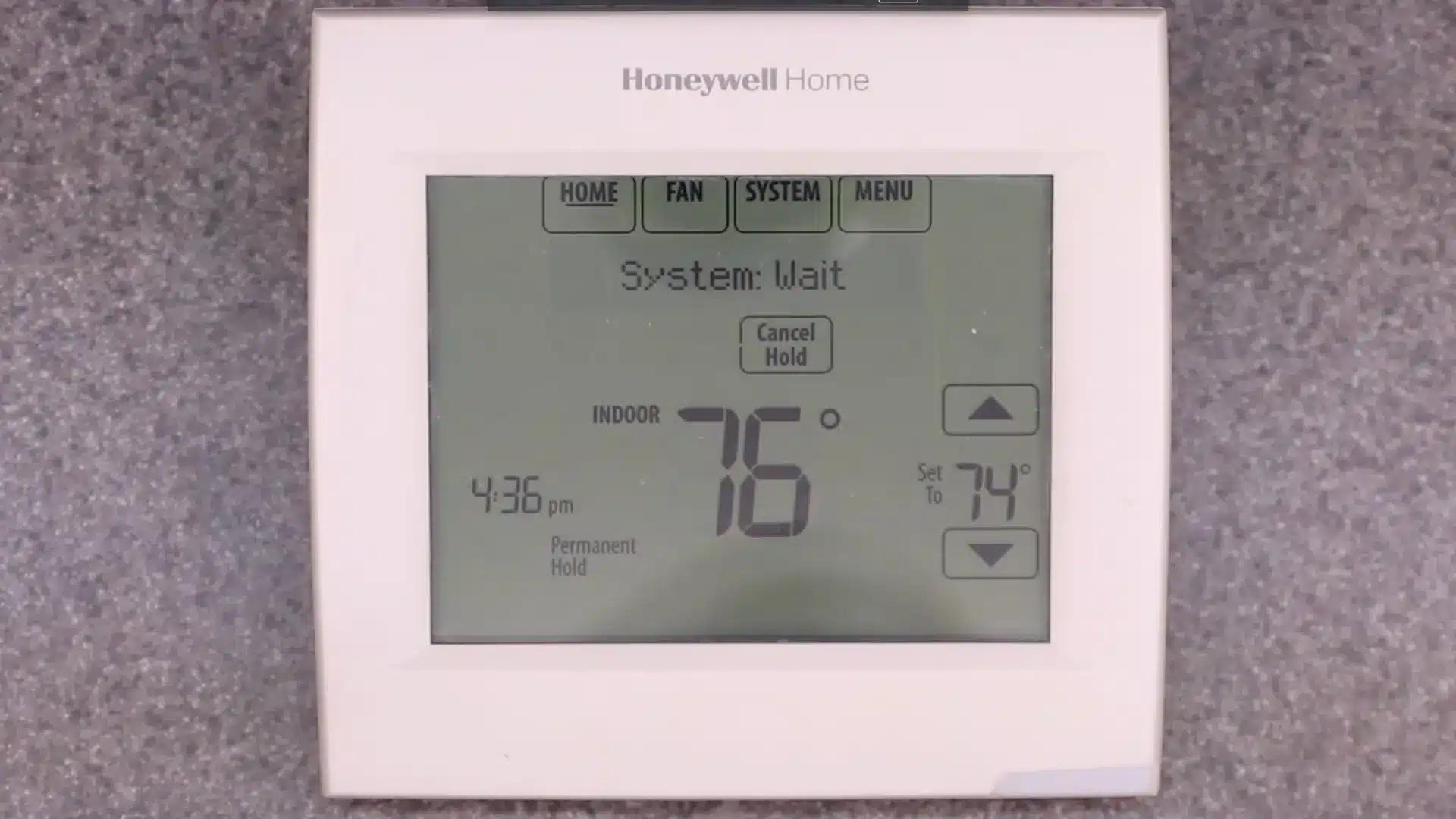
The VisionPRO 8000 models TH8320WF and RTH8580WF use installer function codes.
Press System.
Press and hold the blank center of the screen.
Open the function, enter its setting, and press Done.
Factory reset is 0710/1, schedule reset is 0165/1, and Wi-Fi disconnect is 0900/0.
Honeywell Thermostat Reset Types and What Each One Clears
Reset type | What it clears | When to use it |
|---|---|---|
Factory Reset | May erase schedules, network data, and installer settings | Persistent configuration problems |
Schedule Reset | Removes programmed schedules (Hold is a separate feature) | Unwanted schedules |
Wi-Fi Reset | Clears saved network information | Router or password changes |
HomeKit Reset | Removes the Apple HomeKit pairing | HomeKit connection problems |
Power Cycle | Restarts without erasing saved settings | Frozen display |
Match the reset to the symptom. Lighter options, such as a Wi-Fi Reset or power cycle, keep more settings intact.
What to Set Up After a Honeywell Thermostat Reset
After a factory reset, check these settings before relying on the thermostat:
System type: Choose conventional or heat pump.
Stages: Set the heating and cooling output levels your equipment supports.
Fan: Choose automatic or continuous.
Schedule: Rebuild it if the reset removed it.
Wi-Fi: Reconnect and, if needed, pair with the Resideo app.
Sensors and HomeKit: Re-pair any connections the reset removed.
Heat pumps also need the O/B setting, which controls the reversing valve and must match the wiring. The C-wire, or common wire, supplies continuous low-voltage power to many smart thermostats. Check compatibility before changing wiring. If you are unsure about any installer setting, ask a qualified technician.
Common Honeywell Thermostat Problems and Possible Causes
A reset cannot fix every thermostat problem. Find your symptom in the table below, check the likely cause first, and move to professional help only when those simpler checks fail.
Symptom | Possible cause | What to check |
|---|---|---|
Blank or unresponsive screen | Dead batteries or lost power | Check batteries, faceplate seating, breaker, and equipment switch, then try the model-specific restart |
Incorrect temperature | Sensor location or calibration | Compare with a separate thermometer |
Wi-Fi disconnects | Router, weak signal, or unsupported network | Check network compatibility and signal strength |
Schedule not working | Hold or wrong programming | Cancel Temporary Hold, which lasts until the next scheduled change, or Permanent Hold, which lasts until you cancel it |
Heating or cooling will not start | Wrong mode, setpoint, or configuration | Check mode and temperature setting |
Wait or Cool On message | Compressor delay | Allow the protective delay, commonly about five minutes |
Repeated restarts | Unstable power or hardware fault | Arrange a professional inspection |
When to Call an HVAC Pro or Replace the Thermostat
Contact an HVAC professional if:
The thermostat stays unresponsive after the correct restart or reset.
The breaker trips more than once.
You see damaged wiring, water near electrical equipment, or overheating.
The equipment does not respond even though the thermostat is configured correctly.
Consider replacing the thermostat if the display is damaged, controls repeatedly fail, readings stay inaccurate after checking placement, or it is incompatible with your equipment. A failed reset alone is not a reason, since a thermostat that is not working may have a cause in the power supply, wiring, or control board.
For product assistance, contact Honeywell Home Technical Support at 1-800-633-3991.
Wrapping Up
Resetting a Honeywell thermostat comes down to three things: your model, the lightest reset that fits the symptom, and a few minutes to rebuild your settings afterward.
A reset can help with some freezes, schedule slips, and Wi-Fi drops. Persistent symptoms often point to power, wiring, the router, a sensor, or the HVAC equipment, not the thermostat.
Saving your model number in your phone’s notes makes the next reset quicker.
Frequently Asked Questions
Where is the reset button on a Honeywell thermostat?
Most models have none. Resets happen through menus, button combinations, installer codes, or a power cycle, depending on the model.
How do I reset a thermostat with four or five buttons?
Button count cannot identify the right combination. Find the model number first, then use that model’s procedure, such as Up Arrow plus Fan for the FocusPRO 6000.
How do I unlock a locked T5 or T6 Pro Wi-Fi thermostat?
On T5, T5+, and T6 Pro Wi-Fi models, the four-digit Screen Lock PIN is the Date Code on the back of the faceplate plus 1234. For example, a Date Code of 1644 gives a PIN of 2878. Enter it with the on-screen controls. If it fails, check your exact model’s instructions.
Can I reset my Honeywell thermostat from the app?
Reset options vary by model. The T9, T10, and T5/T6 Pro Wi-Fi use on-thermostat menus or button sequences. The Resideo app can help set up some models after a factory reset, but do not assume it can perform the reset itself.