
 Find out how to make the recycle bin empty itself automatically, put trashed files back where you got them, hide the trash can from your desktop, and more.
1. Delete files immediately
When you toss a file in the recycle bin, it doesn’t actually get deleted right away. Instead, it’ll sit in the trash—and take up space on your hard drive—until you empty it manually or until it hits a preset limit (which I’ll cover in a moment).
Of course, keeping trashed files on your system temporarily is a good idea in case you change your mind later. But if you’re positive you want to ditch a file right away, you can skip the recycle bin and delete it immediately.
One way to do it is to right-click it, hold down the SHIFT key, and then select “Delete” from the pop-up menu.
Want all the files you delete to be trashed permanently? Right-click the recycle bin, select “Properties,” then click the “Don’t move files to the Recycle Bin” option.
2. Set a size limit
Let’s say you do want to temporarily keep deleted files in the recycle bin. That’s fine, so long as you remember to take out the trash once in a while. But who wants to bother with that? Me neither.

The recycle bin will empty itself automatically once you set a maximum size.
Well, you can always set a size limit for the recycle bin. Once the total size of your deleted items hits the limit, the recycle bin will automatically toss the oldest files.
Here’s how you do it:
- Right-click the recycle bin, then select “Properties.”
- Make sure the “Custom size” option is selected, then choose a maximum size—anything up to the total size of your hard drive.
- Click the “Apply” button, then click “OK” to close the settings window. You’re done!
3. Put trashed items back where you found them
So, you dumped a bunch of files in the recycle bin but you’re having second thoughts. Now what?
You could just open the recycle bin, pluck the items out and drop them onto your desktop. A handy alternative, though, is to let Windows send the file back to its original location.
Just open the recycle bin, select the file you want to “un-delete,” then click the “Restore this item” button near the top of the recycle bin window.
Want to put everything back? Make sure you haven’t selected any files, then click the “Restore all items” button.
4. Hide the recycle bin from your desktop
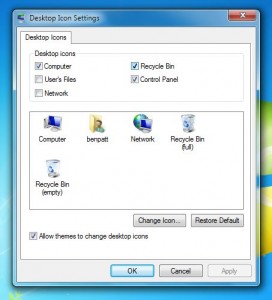
Just check or uncheck the box to reveal—or hide—the recycle bin from your desktop.
Don’t want the recycle bin icon cluttering up your desktop? You can always hide it from your desktop in a few clicks.
- Click the Start menu, select Control Panel from the right column, click the “Change the theme” link under “Appearance and Personalization,” then click the “Change desktop items” link.
- Next, you’ll see a window showing all the various system icons that can appear on the desktop—including the recycle bin. Want to evict the recycle bin icon? Just uncheck it, then click the “Apply” button.
- Need to get back into the recycle bin? Retrace your steps, click the box next to “Recycle Bin,” then click “Apply” again.
Looking for more Windows tips? Click here!


